



CIDR User Interface Overview
CIDR User Interface Overview
CRSSP Imagery-Derived Requirements (CIDR) Tool user interface provides access to public Data Acquisition Request (DAR) and functions to assist in searching previously entered DARs. A general overview of the sections (Figure 1) include:
A. Menu Bar
B. Map Navigation
C. Active Requests
D. Archived Requests
E. Filter Function
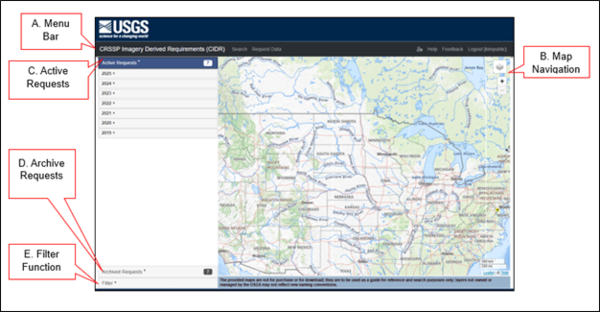
Figure 1: User Interface
A. Menu Bar - The CIDR menu bar (Figure 2) is directly below the header and provides a means to navigate to different functions.

Figure 2: Menu Bar
The menu bar includes (left to right):
- CRSSP Imagery-Derived Requirements (CIDR) Tool - Returns you to the map interface within the application.
- Search - Displays the map interface and the DARs lists to find previously entered DARs.
- Request Data -Must be logged in to access this function. Allows users to request/create a Data Acquisition Request (DAR).
- User Settings - Provides link to user uploaded extents and WMS layers.
- Help - Provides information and instructions for CIDR.
- Feedback - Provides a link to the feedback form.
- Login/Logout – Login will access the ERS webpage to enter username and password. Login name will display on right side. Logout will log user out of CIDR.
B. Map Navigation - The map navigation and layer controls are zoom in/out and overlays include options for the background map. The overlay options are The National Map and the USA Topographic.
C. Active Requests - The list consists of active requests by year entered, newest on top, that continue to receive Data Acquisition Request’s (DARs) data. The number on the right is how many years the Active Requests include. (Figure 3)

D. Archived Requests - The list consists of past requests by year entered, that are closed and no longer receive DAR data. The number on the right is how many years the Archived Requests include.

Figure 4: Archived Requests
E. Filter Function - Users can narrow down searches using filters. The filters include:
- Temporal Extent - Acquisition Date
- Spatial Extent - Point, Box, Polygon, Circle, Predefined Areas, User Uploaded Areas
- Status - DAR Status
Search
CIDR search capability provides the means to find data for active and archived DARs. The interface entry page defaults to the Active Requests list and search capability.
Active Requests
The list consists of active requests by year entered, newest on top, that continue to receive Data Acquisition Request’s (DARs) data. The number on the right is how many years the Active Requests include.
Public DARs – Active Requests list of DARs available to the public to view coverage area and detailed information. (Figure 5)
A. Coverage Area
B. Details of DAR Requirements
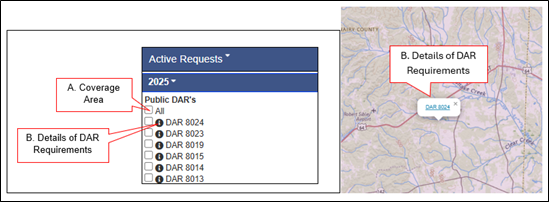
Figure 5: Active Public DARs
A. Coverage Area - Click the box next to the DAR(s) to display DAR coverage area. (Figure 5)
B. Details of DAR Requirements - Click on the information icon (Figure 5) to access details of the DAR. Or display the coverage map of a DAR, click on the map, and click on DAR number. The DAR summary will be displayed (Figure 6) The page includes details of the data entered in the Request Data function. (See Request Data section below) i.e., Export DAR to KML, Email DAR information, General DAR Information, Imaging Requirements, and map displaying coverage area.
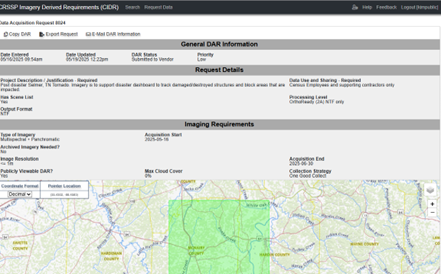
Figure 6: DAR Summary Information
DAR Actions - The DAR page provides users with action options:

Figure 7: DAR Actions
Copy DAR - Create a copy of the DAR if the user's account has appropriate permissions
Export Request - A KML exported to be saved by the user.
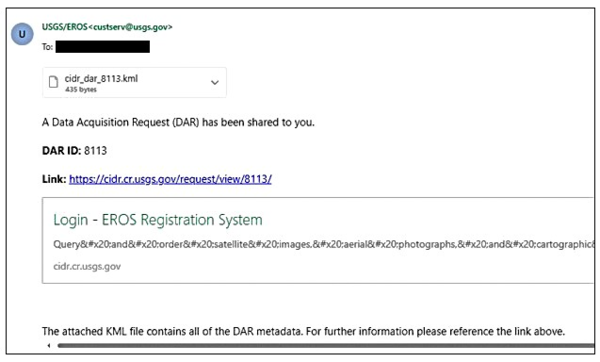
E-Mail DAR Information - The DAR information, including KML, can be sent to the entered email address. The email information would be:
Sender: USGS/EROS custserv@usgs.gov
Subject: CIDR DAR 8113 has been shared with you
Body:
Archived Requests
Archived Requests list no longer has active Data Acquisition Requirements (DARs). Once the DAR is considered closed, then it migrates to the Archived Request list. Functions within the Archived Requests list are the same as the Active Requests. The number on the right is how many years the Archived Requests include.
Filter
CIDR interface provides the capability to apply filters to narrow searches. The map interface in filter mode provides the option to change Coordinate Format in Decimal or Degrees Minutes Seconds (DMS). The Pointer Location displays the coordinates for the location of the mouse on the map. There are different methods to utilize filters. (Figure 8)
They include:
A. Temporal Extent
B. Spatial Extent/Geometry
C. Status
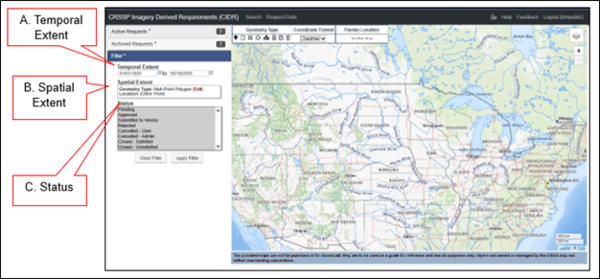
Figure 8: Filter Functions
A. Temporal Extent - Filter based on acquisition date of the DAR data. (Example of temporal extent filter and search. (Figure 9)
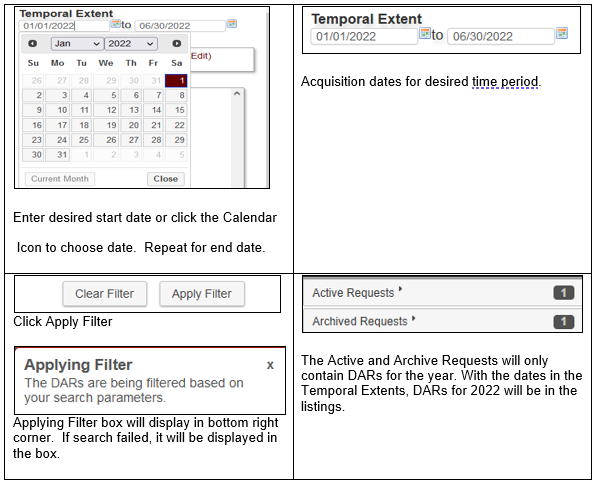
Figure 9: Temporal Extent Example
B. Spatial Extent - Filter based on geographical areas. Using the tools on the map, select the Area of Interest (AOI) to filter and search. The Coordinate Format dropdown has choices for Decimal or Degree, Minutes, and Seconds. The Pointer Location shows coordinates of the pointer on the map. (Figure 10)
Figure 10: Spatial Extent
Note: Spatial Extent Filters search against the DAR coverage areas. This could affect searches utilizing the Point, small Box and Polygon in returning no results.
Point - Area of Interest (AOI) is a point on the map. Click on the Point icon, then click the map to designate AOI. Or enter Latitude and Longitude in the Show Options dropdown. Click the trash can icon to remove selections. (Figure 11)
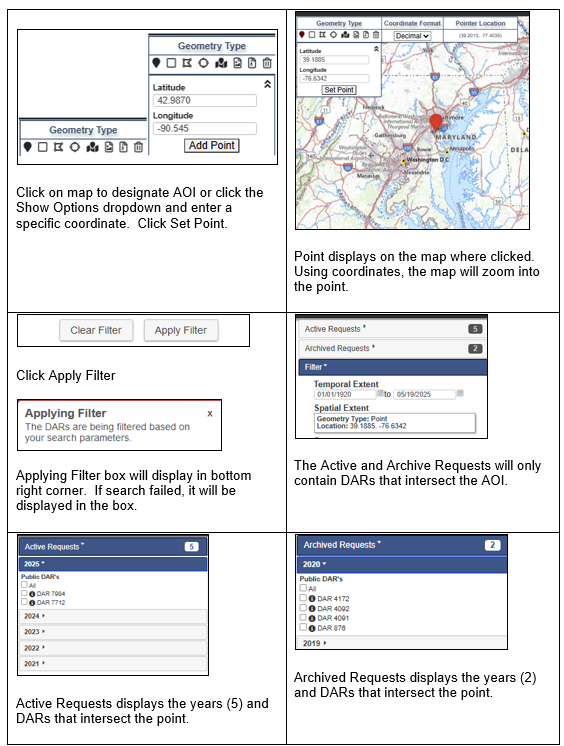
Figure 11: Point Geometry Type
Bounding Box - Set the AOI by using the box method. Click on the Bounding Box icon, then click on the map to begin box, click another point on map to create a box. Or enter Latitude and Longitude in the Show Options dropdown. Click the trash can icon to remove selections. (Figure 12)
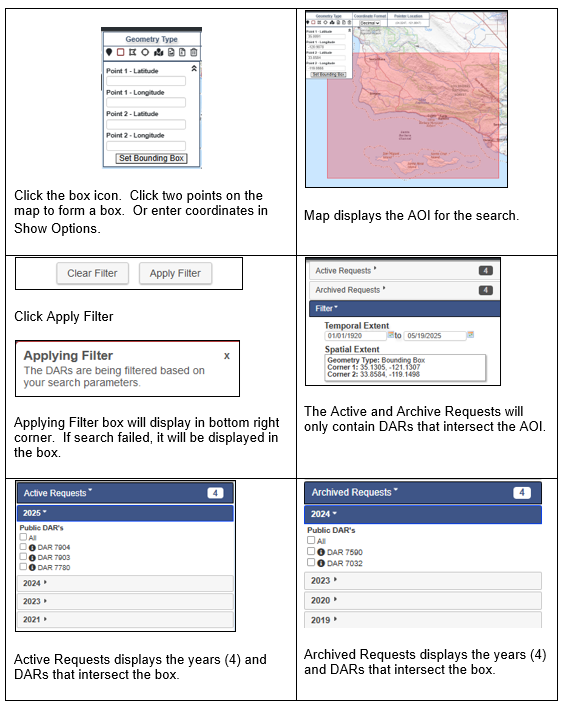
Figure 12: Box Geometry Type
Multi-Point Polygon - Set the AOI by using many points to form a polygon. Click on the Multi-Point Polygon icon, then click multi points on the map to form a polygon. Or enter coordinates in the Show Options dropdown. Add one set at a time to form the polygon. Click the trash can icon to remove selections. (Figure 13)
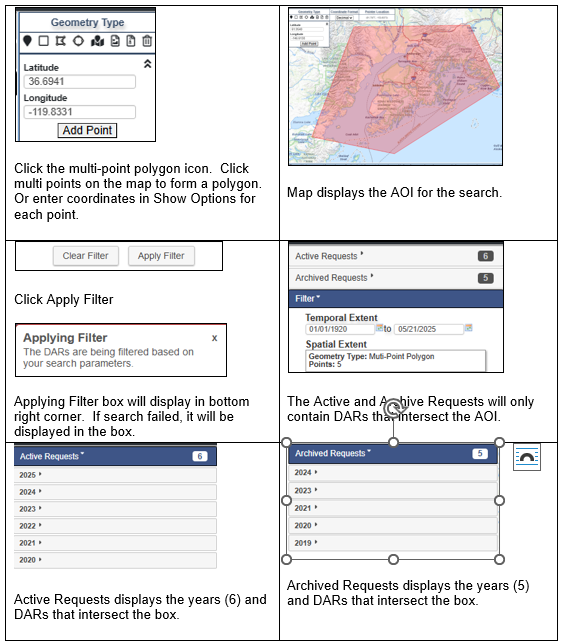
Figure 13: Multi-Point Polygon Geometry Type
Circle - To define a geographic location by creating a circle, select Circle icon from the Geometry Type toolbar. Click the center of the AOI, then click the desired radius on the map to define the area of interest. Or enter coordinates and radius manually.
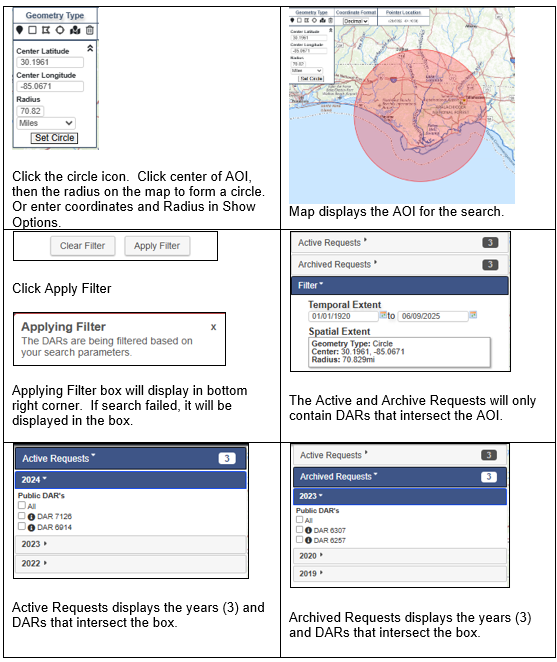
Figure 14: Circle Geometry Type
Predefined Area - This tool offers predefined areas for the U.S. (Figure 15) and User Uploaded (Figure 16) areas (shown in bullet 6. KML Upload and bullet 7. SHP Upload below). Click on predefined area icon to see the options. Click the trash can icon to remove selections.
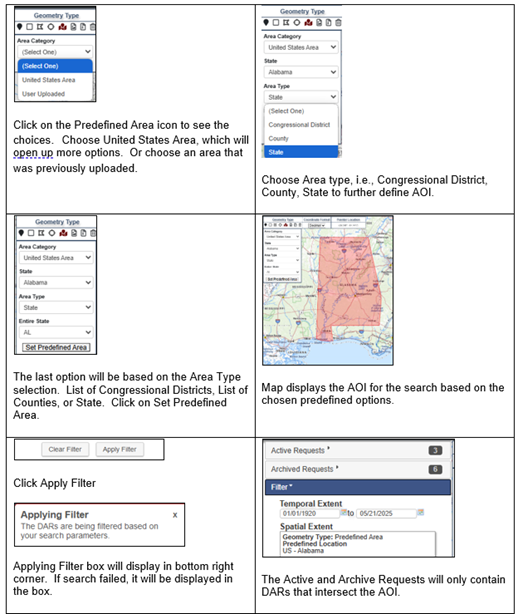
Figure 15: Pre-Defined Area Geometry Type
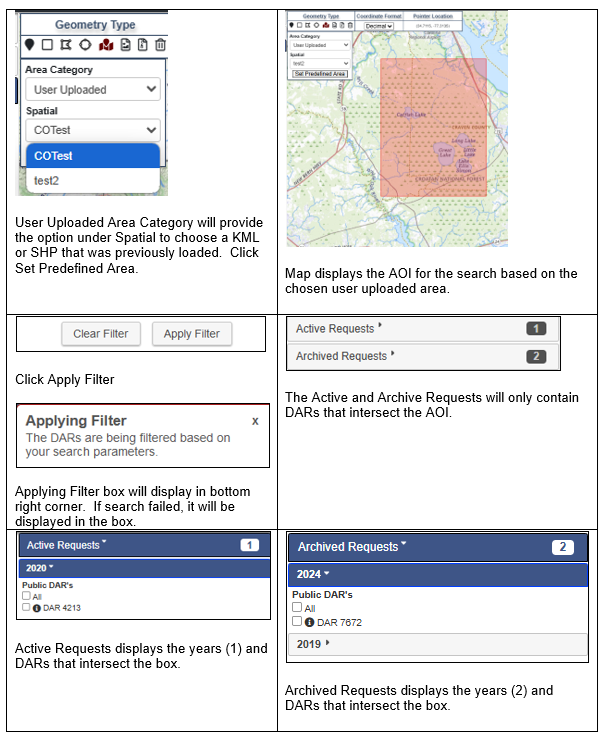
Figure 16: User Uploaded Areas Geometry Type
KML Upload - This tool provides a means for users to upload a KML of their own AOI. Click the trash can icon to remove selections. (Figure 17)
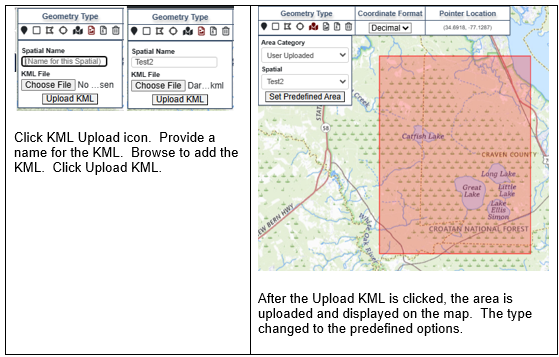
Figure 17: KML Upload Tool
SHP Upload - This tool provides a means for users to upload a SHP of their own AOI. The SHP upload requires the four components of a shapefile. (.shp, .sbx, .dbf, .prj) Click the trash can icon to remove selections. (Figure 18)
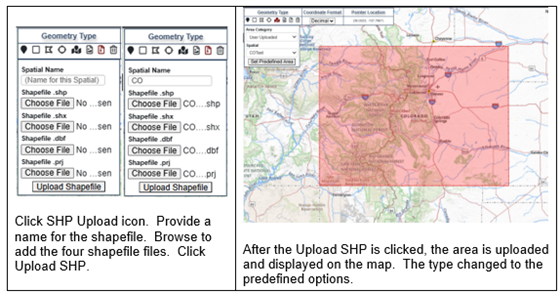
Figure 18: SHP Upload Tool
Status – The filter refers to the status of the DAR. The default is all statuses are selected. (Figure 19)
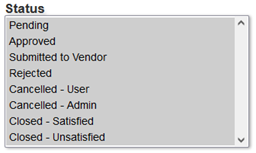
Figure 19: Status Filters
Status Definitions
- Pending – DAR waiting to be approved.
- Approved – DAR meets standard requirements for tasking/requesting data.
- Submitted to Vendor – DAR has been picked up by NCAC to be entered into GIMS.
- Rejected – DAR does not fall within the standard requirements for tasking/requesting data.
- Cancelled – User – DAR owner decided to cancel request.
- Cancelled – Admin – CIDR Admin canceled the request for a variety of reasons. Example: DAR duplication
- Closed – Satisfied - DAR owner or CIDR Admin closed request because the project acquired desired data.
- Closed – Unsatisfied – DAR Owner or CIDR Admin closed request due to data not meeting project needs or target window has closed.
CIDR User Interface Overview
CRSSP Imagery-Derived Requirements (CIDR) Tool user interface provides access to public Data Acquisition Request (DAR) and functions to assist in searching previously entered DARs. A general overview of the sections (Figure 1) include:
A. Menu Bar
B. Map Navigation
C. Active Requests
D. Archived Requests
E. Filter Function
Figure 1: User Interface
A. Menu Bar - The CIDR menu bar (Figure 2) is directly below the header and provides a means to navigate to different functions.
Figure 2: Menu Bar
The menu bar includes (left to right):
- CRSSP Imagery-Derived Requirements (CIDR) Tool - Returns you to the map interface within the application.
- Search - Displays the map interface and the DARs lists to find previously entered DARs.
- Request Data -Must be logged in to access this function. Allows users to request/create a Data Acquisition Request (DAR).
- User Settings - Provides link to user uploaded extents and WMS layers.
- Help - Provides information and instructions for CIDR.
- Feedback - Provides a link to the feedback form.
- Login/Logout – Login will access the ERS webpage to enter username and password. Login name will display on right side. Logout will log user out of CIDR.
B. Map Navigation - The map navigation and layer controls are zoom in/out and overlays include options for the background map. The overlay options are The National Map and the USA Topographic.
C. Active Requests - The list consists of active requests by year entered, newest on top, that continue to receive Data Acquisition Request’s (DARs) data. The number on the right is how many years the Active Requests include. (Figure 3)
D. Archived Requests - The list consists of past requests by year entered, that are closed and no longer receive DAR data. The number on the right is how many years the Archived Requests include.
Figure 4: Archived Requests
E. Filter Function - Users can narrow down searches using filters. The filters include:
- Temporal Extent - Acquisition Date
- Spatial Extent - Point, Box, Polygon, Circle, Predefined Areas, User Uploaded Areas
- Status - DAR Status
Search
CIDR search capability provides the means to find data for active and archived DARs. The interface entry page defaults to the Active Requests list and search capability.
Active Requests
The list consists of active requests by year entered, newest on top, that continue to receive Data Acquisition Request’s (DARs) data. The number on the right is how many years the Active Requests include.
Public DARs – Active Requests list of DARs available to the public to view coverage area and detailed information. (Figure 5)
A. Coverage Area
B. Details of DAR Requirements
Figure 5: Active Public DARs
A. Coverage Area - Click the box next to the DAR(s) to display DAR coverage area. (Figure 5)
B. Details of DAR Requirements - Click on the information icon (Figure 5) to access details of the DAR. Or display the coverage map of a DAR, click on the map, and click on DAR number. The DAR summary will be displayed (Figure 6) The page includes details of the data entered in the Request Data function. (See Request Data section below) i.e., Export DAR to KML, Email DAR information, General DAR Information, Imaging Requirements, and map displaying coverage area.
Figure 6: DAR Summary Information
DAR Actions - The DAR page provides users with action options:
Figure 7: DAR Actions
Copy DAR - Create a copy of the DAR if the user's account has appropriate permissions
Export Request - A KML exported to be saved by the user.
E-Mail DAR Information - The DAR information, including KML, can be sent to the entered email address. The email information would be:
Sender: USGS/EROS custserv@usgs.gov
Subject: CIDR DAR 8113 has been shared with you
Body:
Archived Requests
Archived Requests list no longer has active Data Acquisition Requirements (DARs). Once the DAR is considered closed, then it migrates to the Archived Request list. Functions within the Archived Requests list are the same as the Active Requests. The number on the right is how many years the Archived Requests include.
Filter
CIDR interface provides the capability to apply filters to narrow searches. The map interface in filter mode provides the option to change Coordinate Format in Decimal or Degrees Minutes Seconds (DMS). The Pointer Location displays the coordinates for the location of the mouse on the map. There are different methods to utilize filters. (Figure 8)
They include:
A. Temporal Extent
B. Spatial Extent/Geometry
C. Status
Figure 8: Filter Functions
A. Temporal Extent - Filter based on acquisition date of the DAR data. (Example of temporal extent filter and search. (Figure 9)
Figure 9: Temporal Extent Example
B. Spatial Extent - Filter based on geographical areas. Using the tools on the map, select the Area of Interest (AOI) to filter and search. The Coordinate Format dropdown has choices for Decimal or Degree, Minutes, and Seconds. The Pointer Location shows coordinates of the pointer on the map. (Figure 10)
Figure 10: Spatial Extent
Note: Spatial Extent Filters search against the DAR coverage areas. This could affect searches utilizing the Point, small Box and Polygon in returning no results.
Point - Area of Interest (AOI) is a point on the map. Click on the Point icon, then click the map to designate AOI. Or enter Latitude and Longitude in the Show Options dropdown. Click the trash can icon to remove selections. (Figure 11)
Figure 11: Point Geometry Type
Bounding Box - Set the AOI by using the box method. Click on the Bounding Box icon, then click on the map to begin box, click another point on map to create a box. Or enter Latitude and Longitude in the Show Options dropdown. Click the trash can icon to remove selections. (Figure 12)
Figure 12: Box Geometry Type
Multi-Point Polygon - Set the AOI by using many points to form a polygon. Click on the Multi-Point Polygon icon, then click multi points on the map to form a polygon. Or enter coordinates in the Show Options dropdown. Add one set at a time to form the polygon. Click the trash can icon to remove selections. (Figure 13)
Figure 13: Multi-Point Polygon Geometry Type
Circle - To define a geographic location by creating a circle, select Circle icon from the Geometry Type toolbar. Click the center of the AOI, then click the desired radius on the map to define the area of interest. Or enter coordinates and radius manually.
Figure 14: Circle Geometry Type
Predefined Area - This tool offers predefined areas for the U.S. (Figure 15) and User Uploaded (Figure 16) areas (shown in bullet 6. KML Upload and bullet 7. SHP Upload below). Click on predefined area icon to see the options. Click the trash can icon to remove selections.
Figure 15: Pre-Defined Area Geometry Type
Figure 16: User Uploaded Areas Geometry Type
KML Upload - This tool provides a means for users to upload a KML of their own AOI. Click the trash can icon to remove selections. (Figure 17)
Figure 17: KML Upload Tool
SHP Upload - This tool provides a means for users to upload a SHP of their own AOI. The SHP upload requires the four components of a shapefile. (.shp, .sbx, .dbf, .prj) Click the trash can icon to remove selections. (Figure 18)
Figure 18: SHP Upload Tool
Status – The filter refers to the status of the DAR. The default is all statuses are selected. (Figure 19)
Figure 19: Status Filters
Status Definitions
- Pending – DAR waiting to be approved.
- Approved – DAR meets standard requirements for tasking/requesting data.
- Submitted to Vendor – DAR has been picked up by NCAC to be entered into GIMS.
- Rejected – DAR does not fall within the standard requirements for tasking/requesting data.
- Cancelled – User – DAR owner decided to cancel request.
- Cancelled – Admin – CIDR Admin canceled the request for a variety of reasons. Example: DAR duplication
- Closed – Satisfied - DAR owner or CIDR Admin closed request because the project acquired desired data.
- Closed – Unsatisfied – DAR Owner or CIDR Admin closed request due to data not meeting project needs or target window has closed.