



CIDR Data Acquisition Request Summary
CIDR Data Acquisition Request Summary displays the entered information from Request Data page.
After the Request Data information has been submitted, the Data Acquisition Request (DAR) summary page will display. The summary displays the some action items, general information, and entries from Request Data page.
A. DAR Number and Action Item Options
B. General DAR Information
C. Request Details
D. Imaging Details, Including Spatial
E. DAR History
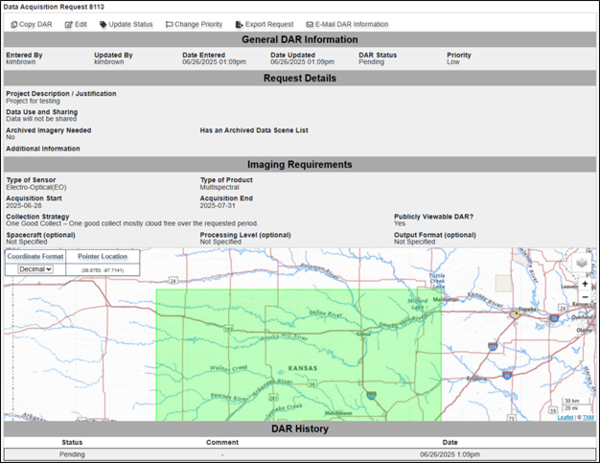
Figure 1: DAR Summary
A. DAR Number and Action Item Options
DAR Numbers are the assigned number and referenced in emails, CIDR search, or used Additional Criteria in EarthExplorer to search for commercial data (MAXAR Only).
- There are five Action Item Options available at the top of the page.
- Copy DAR – Users can copy any of their DARs and modify them to meet new requirements and resubmit.
- Edit – Users can edit DARs only before the DAR has been approved by the administrator. If need to modify after that point, the DAR can be copied, modified, and resubmitted. Users are recommended to cancel any DARs that are not relevant or entered in error.
- Update Status – Users can update the status of their DAR depending on what the status is at the time. As the DAR continues through the process, different options will become available.
- Export Request – The DAR can be exported as a KML for current or future reference.
- E-Mail DAR Information – The DAR can be emailed to other approved CIDR users.
B. General DAR Information – The General DAR Information section includes the Username associated with the DAR, Username of administrative associate, Date Entered, Date Updated, DAR Status, and Priority.
C. Request Details – This section displays the entries made on the Request Data page.
D. Imaging Requirements, Including Spatial – This section displays the entries made on the Request Data Page, including the bounding Area of Interest.
E. DAR History – Users can track the status of the DAR, with any comments that were added and the date of each update.
Status Definitions
- Pending – DAR waiting to be approved.
- Approved – DAR meets standard requirements for tasking/requesting data.
- Submitted to Vendor – DAR has been picked up by NCAC to be entered into GIMS.
- Rejected – DAR does not fall within the standard requirements for tasking/requesting data.
- Canceled – User – DAR owner decided to cancel request
- Cancelled – Admin – CIDR Admin canceled the request for a variety of reasons. Example: DAR duplication
- Closed – Satisfied - DAR owner or CIDR Admin closed request because the project acquired desired data.
- Closed – Unsatisfied – DAR Owner or CIDR Admin closed request due to data not meeting the project's needs or the target window has closed.
CIDR Data Acquisition Request Summary displays the entered information from Request Data page.
After the Request Data information has been submitted, the Data Acquisition Request (DAR) summary page will display. The summary displays the some action items, general information, and entries from Request Data page.
A. DAR Number and Action Item Options
B. General DAR Information
C. Request Details
D. Imaging Details, Including Spatial
E. DAR History
Figure 1: DAR Summary
A. DAR Number and Action Item Options
DAR Numbers are the assigned number and referenced in emails, CIDR search, or used Additional Criteria in EarthExplorer to search for commercial data (MAXAR Only).
- There are five Action Item Options available at the top of the page.
- Copy DAR – Users can copy any of their DARs and modify them to meet new requirements and resubmit.
- Edit – Users can edit DARs only before the DAR has been approved by the administrator. If need to modify after that point, the DAR can be copied, modified, and resubmitted. Users are recommended to cancel any DARs that are not relevant or entered in error.
- Update Status – Users can update the status of their DAR depending on what the status is at the time. As the DAR continues through the process, different options will become available.
- Export Request – The DAR can be exported as a KML for current or future reference.
- E-Mail DAR Information – The DAR can be emailed to other approved CIDR users.
B. General DAR Information – The General DAR Information section includes the Username associated with the DAR, Username of administrative associate, Date Entered, Date Updated, DAR Status, and Priority.
C. Request Details – This section displays the entries made on the Request Data page.
D. Imaging Requirements, Including Spatial – This section displays the entries made on the Request Data Page, including the bounding Area of Interest.
E. DAR History – Users can track the status of the DAR, with any comments that were added and the date of each update.
Status Definitions
- Pending – DAR waiting to be approved.
- Approved – DAR meets standard requirements for tasking/requesting data.
- Submitted to Vendor – DAR has been picked up by NCAC to be entered into GIMS.
- Rejected – DAR does not fall within the standard requirements for tasking/requesting data.
- Canceled – User – DAR owner decided to cancel request
- Cancelled – Admin – CIDR Admin canceled the request for a variety of reasons. Example: DAR duplication
- Closed – Satisfied - DAR owner or CIDR Admin closed request because the project acquired desired data.
- Closed – Unsatisfied – DAR Owner or CIDR Admin closed request due to data not meeting the project's needs or the target window has closed.